
Restrict access to individual folders (Admin)
The “Access to folder” option can be used to restrict access rights to a specific folder for individual users. Under “Groups and users”, find the relevant user and click on “Properties” on the left.
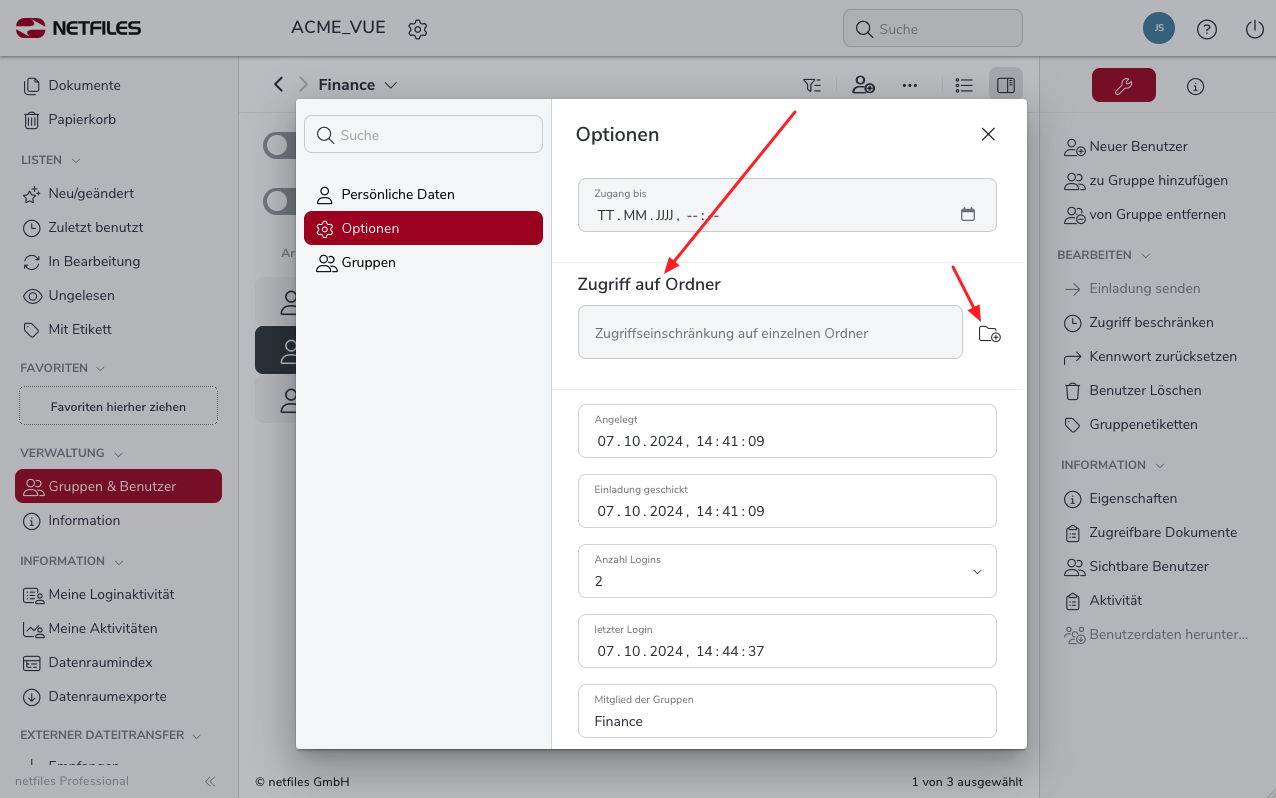
In the following dialog, click on “Options” and scroll down to “Access to folder”. Click on the small folder icon to select the desired folder.
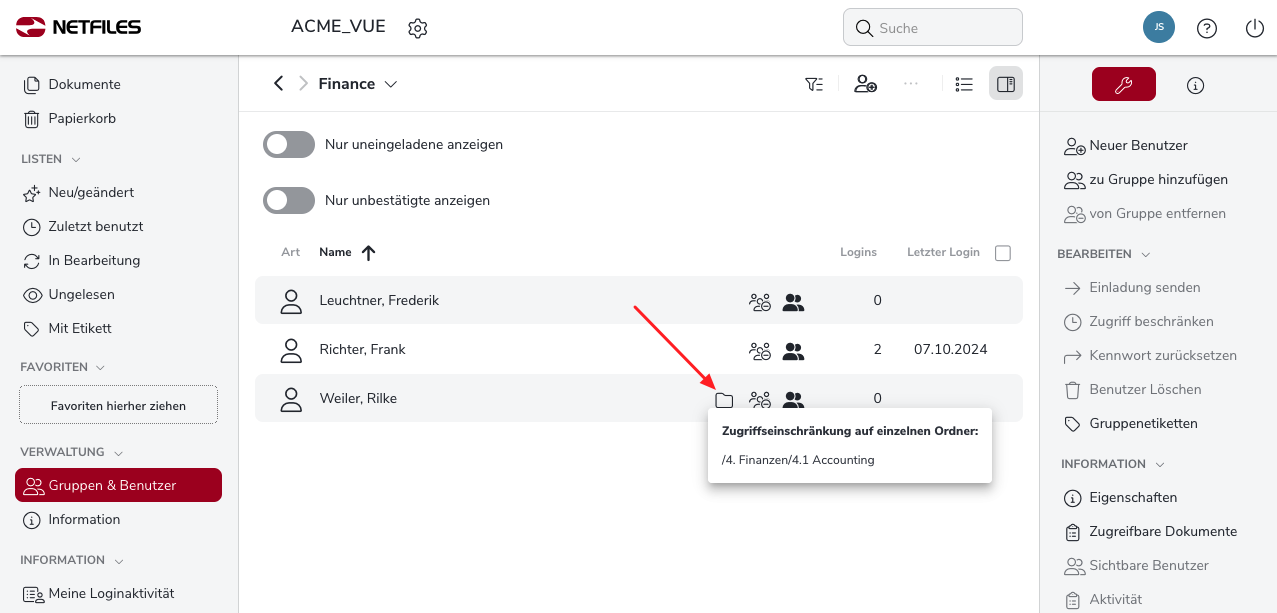
The user can now only access files and folders that are located in the defined folder. A folder icon is now displayed for this user under “Groups and users”. If you now hover over the folder with the mouse, the folder name is displayed.
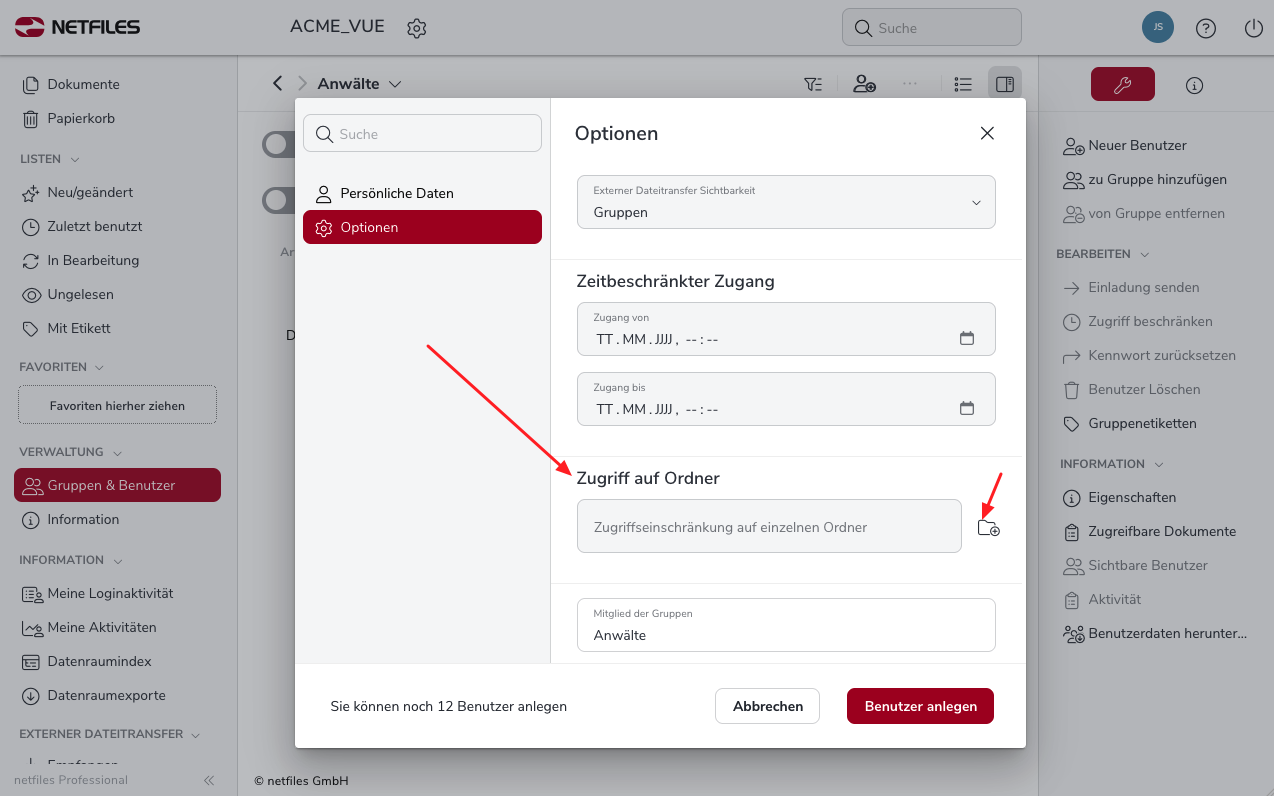
You can also use the “Access to folder” function directly when creating a “new user”. To do this, click on “Options” in the dialog for creating the new user and select the desired folder under “Access to folder”. Please note:
- You should only allow “access to folders” for individual users if this is absolutely necessary for your application scenario. Defining access rights via user groups and folders is generally more flexible and simpler.
- In addition, the assigned access rights also apply to folders with restricted access.

